

How to Create a Data Pipeline in Azure Data Factory: Step-by-Step Tutorial
Quick Answer
To create a data pipeline in Azure Data Factory, first create an Azure Data Factory resource, then configure linked services for your source and destination, create datasets, add a Copy Data activity, configure source and sink settings, validate the pipeline, run or trigger it, and monitor the execution. This workflow helps automate data movement and forms a foundation for modern Azure data engineering.
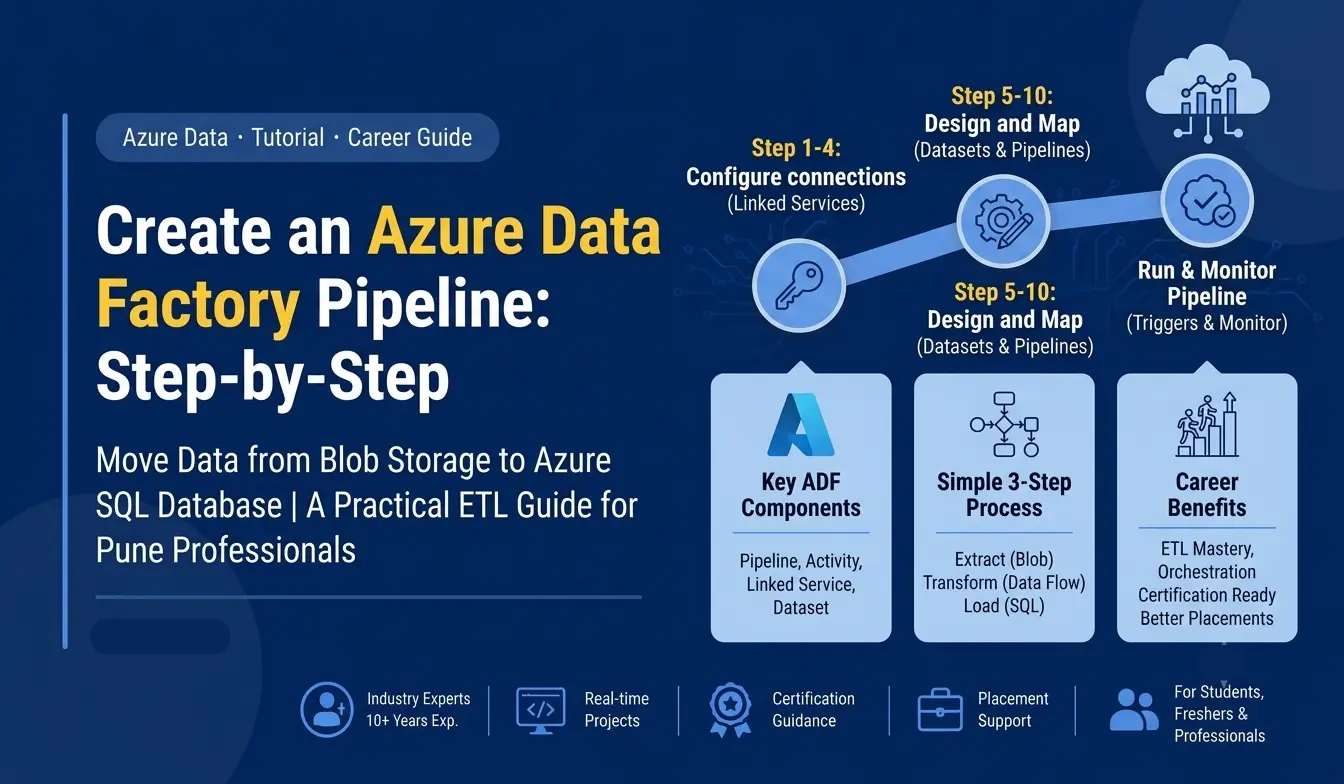
Data is the foundation of modern business decisions, but raw data is rarely ready to use.
Organizations collect information from databases, applications, APIs, files, cloud platforms, and business systems. Before that data can support dashboards, analytics, artificial intelligence, or machine learning, it often needs to be collected, moved, transformed, and organized.
This is where a data pipeline becomes essential.
Microsoft Azure provides Azure Data Factory, a cloud-based data integration service designed to create data-driven workflows for moving and transforming data. A pipeline can connect different data sources, execute activities, automate workflows, and move information into destinations used for analytics and reporting.
For anyone planning a career in cloud data engineering, understanding how to build an Azure Data Factory pipeline is an important practical skill.
In this tutorial, we will walk through the process step by step using a simple example: moving data from Azure Blob Storage to an Azure SQL Database.
What Is Azure Data Factory?
Azure Data Factory is a cloud-based data integration and orchestration service from Microsoft Azure.
Think of it as a workflow engine for data.
Instead of manually downloading files, transforming information, and loading it into another system, you can create a pipeline that performs these tasks automatically.
A typical Azure data workflow can look like this:
Source Data → Data Pipeline → Transformation → Destination → Analytics
For example:
Azure Blob Storage → Azure Data Factory → Azure SQL Database → Power BI
Azure Data Factory supports many different data stores and can orchestrate data movement and transformation workflows across cloud and hybrid environments.
For aspiring professionals taking an Azure Data Engineer Course in Pune, learning these concepts through practical projects is much more valuable than understanding only the theory.
Why Are Azure Data Pipelines Important?
Modern organizations deal with data at a scale that makes manual processing inefficient.
Consider an e-commerce company receiving:
- Customer data
- Product information
- Order transactions
- Payment records
- Website activity
- Marketing data
A data engineer may need to collect this information from multiple systems and make it available for analytics teams.
A data pipeline automates this process.
With Azure Data Factory, organizations can build workflows that:
- Extract data from different sources
- Move data between systems
- Transform data
- Schedule recurring workflows
- Monitor pipeline execution
- Handle dependencies between activities
- Prepare data for analytics and reporting
This is one reason Azure Data Factory Training in Pune is relevant for professionals targeting modern data engineering roles.
Azure Data Factory Pipeline: Key Components
Before creating the pipeline, it is important to understand the main components.
1. Pipeline
A pipeline is a logical grouping of activities that together perform a data workflow.
For example:
Get Data → Transform Data → Load Data
2. Activity
An activity represents an individual operation inside a pipeline.
Common activities include:
- Copy Activity
- Lookup Activity
- Stored Procedure Activity
- Web Activity
- Data Flow Activity
For our beginner tutorial, we will use Copy Activity.
3. Linked Service
A linked service stores connection information required to connect Azure Data Factory with a data source or destination.
For example:
Azure Blob Storage Linked Service
Azure SQL Database Linked Service
4. Dataset
A dataset represents the structure or location of the data that an activity works with.
For example, a dataset could represent a CSV file stored in an Azure Blob Storage container.
5. Trigger
A trigger determines when a pipeline should run.
It could be:
- Manual
- Scheduled
- Event-based
- Tumbling-window based
Understanding these components is fundamental for anyone pursuing a Microsoft Azure Data Engineering Course.
Prerequisites for Creating an Azure Data Factory Pipeline
Before starting the tutorial, you should have:
- An active Microsoft Azure subscription
- An Azure Data Factory resource
- An Azure Storage account
- A Blob Storage container
- Sample data such as a CSV file
- An Azure SQL Database
- Appropriate permissions to access the resources
Microsoft's current Azure Data Factory quickstart also uses a simple Copy Activity workflow to demonstrate moving data between Azure storage locations.
If you are completely new to Azure, completing basic Azure fundamentals first can make this tutorial easier to follow.
This is where a structured Microsoft Azure Course in Pune can provide a stronger foundation.
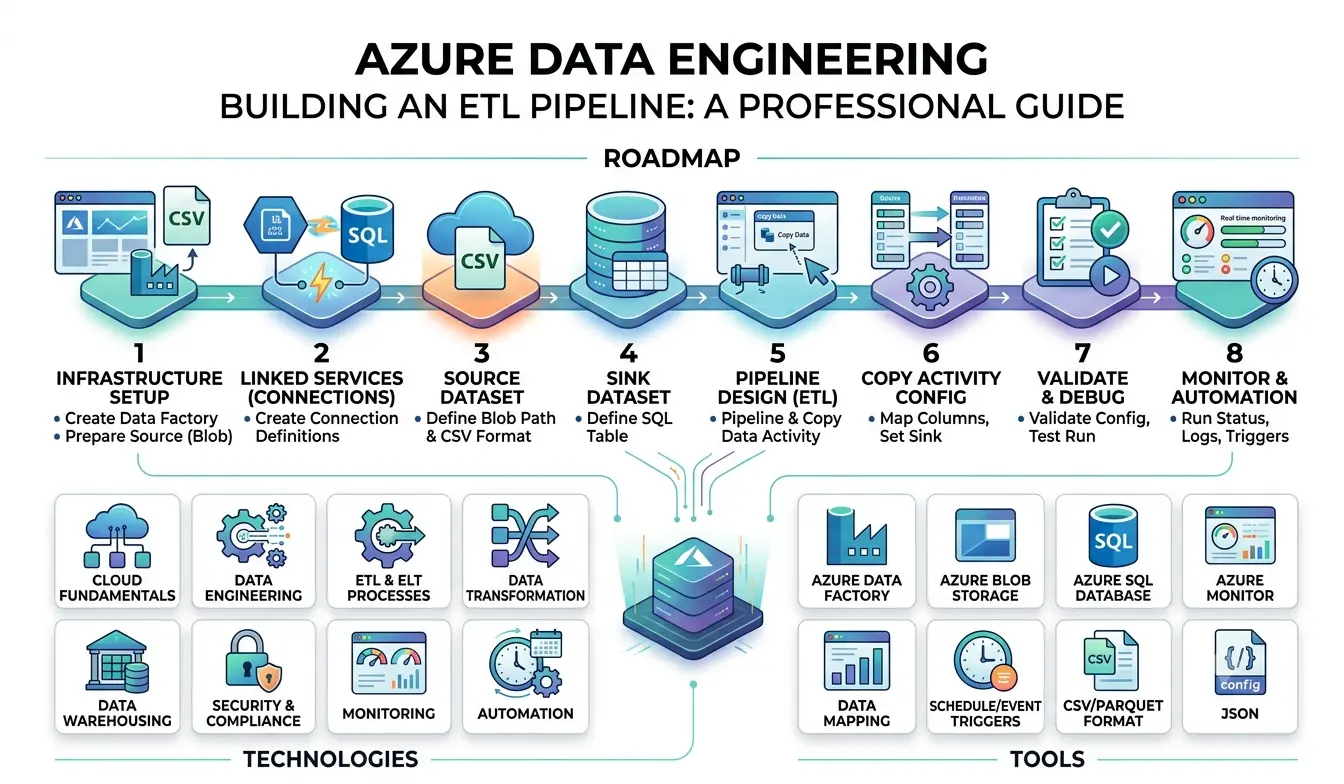
Step 1: Create an Azure Data Factory Resource
Start by signing in to the Azure portal.
Search for:
Azure Data Factory
Select Create.
You will be asked to provide important configuration details such as:
- Azure subscription
- Resource group
- Data Factory name
- Region
- Version
Choose an appropriate name for your Data Factory.
For example:
intellibi-adf-demo
Select the required configuration and create the resource.
Once deployment is complete, open the Data Factory Studio.
The Studio is where you design pipelines, configure connections, create datasets, manage triggers, and monitor executions.
Step 2: Prepare the Source Data
For this tutorial, assume that your source data is stored in Azure Blob Storage.
For example:
customer_data.csv
The file could contain information such as:
CustomerID
CustomerName
City
PurchaseAmount
Upload the file into a Blob Storage container.
For example:
source/customer_data.csv
Azure Data Factory can then connect to this storage location and retrieve the file.
Step 3: Create a Linked Service for Azure Blob Storage
Open Azure Data Factory Studio.
Go to the management or connection section and create a new linked service.
Search for:
Azure Blob Storage
Select the appropriate authentication method and provide the required connection information.
Authentication options can vary depending on the environment. For production scenarios, secure authentication and secret management should be considered carefully.
Save and test the connection.
A successful connection confirms that Data Factory can communicate with your Blob Storage account.
Step 4: Create a Linked Service for Azure SQL Database
Next, create the destination connection.
Choose:
Azure SQL Database
Enter the required:
- Server
- Database
- Authentication details
- Credentials
Test the connection.
If the connection succeeds, Azure Data Factory can communicate with your destination database.
This source-to-destination architecture is a basic pattern used in many ETL workflows.
Step 5: Create the Source Dataset
Now create a dataset representing your source file.
Select:
Author → Datasets → New Dataset
Choose:
Azure Blob Storage
Then select the appropriate file format, such as:
CSV
Connect the dataset to the Blob Storage linked service.
Configure details such as:
- Container
- Folder
- File name
- Column structure
- Header configuration
For example:
source/customer_data.csv
The dataset tells Azure Data Factory where the source data is located and how it should interpret that data.
Step 6: Create the Destination Dataset
Next, create a dataset for the Azure SQL Database.
Select:
Azure SQL Database
Choose the linked service you created earlier.
Then select the destination table.
For example:
Customers
Your basic architecture is now:
Azure Blob Storage
↓
Source Dataset
↓
Copy Activity
↓
Destination Dataset
↓
Azure SQL Database
This is one of the simplest ways to understand an Azure ETL workflow.
Step 7: Create the Data Pipeline
Now comes the most important part.
Go to:
Author → Pipelines → New Pipeline
Give your pipeline a meaningful name.
For example:
CustomerDataPipeline
A good naming convention becomes increasingly important as projects become larger and contain dozens or hundreds of pipelines.
Inside the pipeline designer, search for:
Copy Data
Drag the Copy Data activity onto the design surface.
Microsoft's Azure Data Factory tutorials use Copy Activity as a core example for moving data between a source and destination.
Step 8: Configure the Source
Select the Copy Data activity.
Open the Source tab.
Choose the source dataset you created earlier.
Your source might look like:
Azure Blob Storage → customer_data.csv
Verify:
- Linked service
- File path
- File format
- Dataset configuration
If your CSV contains column headers, ensure that the dataset configuration correctly recognizes them.
Step 9: Configure the Sink
Now open the Sink tab.
Select the Azure SQL dataset.
Choose your destination table.
For example:
Customers
You may also need to configure column mappings.
For example:
CustomerID → CustomerID
CustomerName → CustomerName
City → City
PurchaseAmount → PurchaseAmount
Correct mapping is essential because the destination system needs to understand how incoming fields correspond to target columns.
Step 10: Configure Mapping
Open the mapping section of the Copy Activity.
Review the source and destination columns.
Check whether the fields have been automatically mapped.
If required, manually map the columns.
For example:
CustomerID → CustomerID
CustomerName → CustomerName
City → City
PurchaseAmount → PurchaseAmount
Good mapping practices help prevent data quality problems during ETL operations.
Step 11: Validate the Pipeline
Before running the pipeline, select:
Validate
Azure Data Factory checks the pipeline configuration and identifies potential errors.
If validation succeeds, review your configuration once again.
Check:
- Source connection
- Destination connection
- Dataset configuration
- Column mapping
- Activity settings
Validation is a simple step, but it can save considerable troubleshooting time.
Step 12: Run the Pipeline
Now select:
Debug
Debug mode allows you to test the pipeline before publishing it as a production workflow.
If everything is configured correctly, Azure Data Factory will execute the Copy Activity.
The data should move from:
Azure Blob Storage
to:
Azure SQL Database
Microsoft's documentation also demonstrates testing and monitoring pipeline runs after configuring Copy Activity.
Step 13: Monitor the Pipeline
Creating a pipeline is only half the job.
A professional data engineer also needs to monitor pipeline execution.
Open the monitoring section.
You can review:
- Pipeline status
- Activity status
- Execution duration
- Data read
- Data written
- Error messages
- Run history
If the pipeline fails, the error details can help identify the problem.
Common causes include:
- Incorrect credentials
- Incorrect file paths
- Missing permissions
- Invalid data types
- Incorrect column mapping
- Destination database issues
Monitoring is therefore an essential part of Azure Data Factory Training in Pune and practical data engineering.
Step 14: Add a Trigger for Automation
Running a pipeline manually is useful for testing, but real business systems usually require automation.
You can create a trigger to run your pipeline automatically.
For example:
Every day at 9:00 AM
or:
Every hour
or:
When a new file arrives
Scheduled and event-driven automation allows organizations to continuously process incoming data.
A production workflow might look like:
New File Arrives
↓
Trigger Activated
↓
Azure Data Factory Pipeline
↓
Copy Data
↓
Transform Data
↓
Azure SQL / Data Lake
↓
Power BI Analytics
This is where Azure Cloud Training in Pune becomes particularly valuable because data engineering increasingly involves understanding the broader cloud ecosystem.
Azure Data Factory and ETL: What You Should Understand
ETL stands for:
Extract → Transform → Load
Extract means collecting data from a source.
Transform means cleaning, modifying, filtering, or restructuring the data.
Load means sending the prepared data to a destination.
Azure Data Factory can orchestrate these workflows and connect different services.
For professionals searching for Azure ETL Training in Pune, it is important to learn not only how to click through the Azure portal but also why each part of an ETL architecture exists.
Understanding architecture is what helps beginners progress toward professional data engineering.
How Azure Databricks Can Extend the Pipeline
Azure Data Factory does not have to work alone.
For more advanced data engineering solutions, Data Factory can be used to orchestrate workloads involving Azure Databricks.
For example:
Azure Data Factory
↓
Azure Data Lake Storage
↓
Azure Databricks
↓
Transformation
↓
Azure SQL / Synapse
↓
Power BI
Azure Databricks can be particularly useful when organizations need advanced data processing, Spark-based transformations, or large-scale analytics.
This is why Azure Databricks Training in Pune can be a valuable next step after learning Data Factory.
Common Mistakes Beginners Make
When learning Azure Data Factory, avoid these common mistakes.
Ignoring Authentication
Always understand how your pipeline authenticates with source and destination systems.
Using Poor Naming Conventions
Names such as pipeline1 and dataset2 become difficult to manage in larger environments.
Skipping Validation
Always validate before testing or publishing.
Not Monitoring Runs
A pipeline that runs once successfully is not automatically production-ready.
Ignoring Data Quality
A successful pipeline execution does not necessarily mean the data is correct.
Learning Only the Portal
The goal should be to understand data engineering concepts, not simply memorize where buttons are located.
How This Skill Helps Aspiring Azure Data Engineers
Learning to build a data pipeline introduces you to several important data engineering concepts:
- Cloud data integration
- ETL
- Data movement
- Data transformation
- Data orchestration
- Data storage
- Pipeline automation
- Monitoring
- Cloud architecture
These concepts form a foundation for more advanced technologies such as Azure Data Lake, Azure Databricks, Spark, Synapse, and modern analytics platforms.
If you're considering an Azure Certification Course in Pune, combining certification preparation with practical projects can help you develop a stronger professional portfolio.
Why Practical Learning Matters in Azure Data Engineering
Knowing definitions is different from building a working pipeline.
An interview may ask:
"How would you move data from a source system into a cloud data warehouse?"
A strong candidate should be able to explain:
- Source architecture
- Authentication
- Linked services
- Datasets
- Copy Activity
- Transformation
- Scheduling
- Error handling
- Monitoring
- Data quality
This is why practical project-based learning is so important.
At IntelliBI Innovations Technologies, the focus is on helping learners move beyond theoretical learning and understand how technology is applied to real-world business scenarios.
For professionals considering the Best Azure Data Engineering Course in Pune, the right learning environment should combine structured concepts, practical projects, industry-oriented tools, and career preparation.
What Should You Learn After Azure Data Factory?
Once you understand basic pipelines, your next learning path can include:
Stage 1: Azure Fundamentals
Learn Azure services, resource groups, storage, networking, identity, and cloud concepts.
Stage 2: Azure Data Factory
Learn pipelines, datasets, linked services, activities, parameters, triggers, and monitoring.
Stage 3: Azure Data Lake
Understand how large-scale data can be stored and organized.
Stage 4: Azure Databricks
Learn Spark, PySpark, notebooks, transformations, and modern data processing.
Stage 5: Advanced ETL
Explore incremental loading, parameterization, metadata-driven pipelines, error handling, and reusable workflows.
Stage 6: Analytics
Connect processed data with Power BI and other analytics platforms.
This progression can turn a beginner-level understanding of Azure into a broader data engineering skill set.
Final Thoughts
Creating your first Azure Data Factory pipeline may look complicated at first, but the process becomes much easier when you understand the architecture.
The basic workflow is:
Source → Linked Service → Dataset → Pipeline → Copy Activity → Destination → Trigger → Monitoring
Once you understand this pattern, you can gradually build more sophisticated workflows involving transformations, automation, Azure Data Lake, Databricks, and analytics platforms.
For anyone planning a career in cloud data engineering, Azure Data Factory is a practical technology worth learning.
Whether you're exploring an Azure Data Engineer Course in Pune, looking for Azure Training in Pune, considering a Microsoft Azure Course in Pune, or preparing for a Microsoft Azure Data Engineering Course, focus on building—not just watching.
At IntelliBI Innovations Technologies, our approach is centered around practical, industry-oriented learning that helps professionals understand how technology works in real business environments.
Your first pipeline may move a CSV file.
Your next project could power an enterprise analytics platform.
The difference starts with learning how to build.